Image Extender
Extend uploaded image borders with a clean AI studio workflow for portraits, background edges, and wider composition.
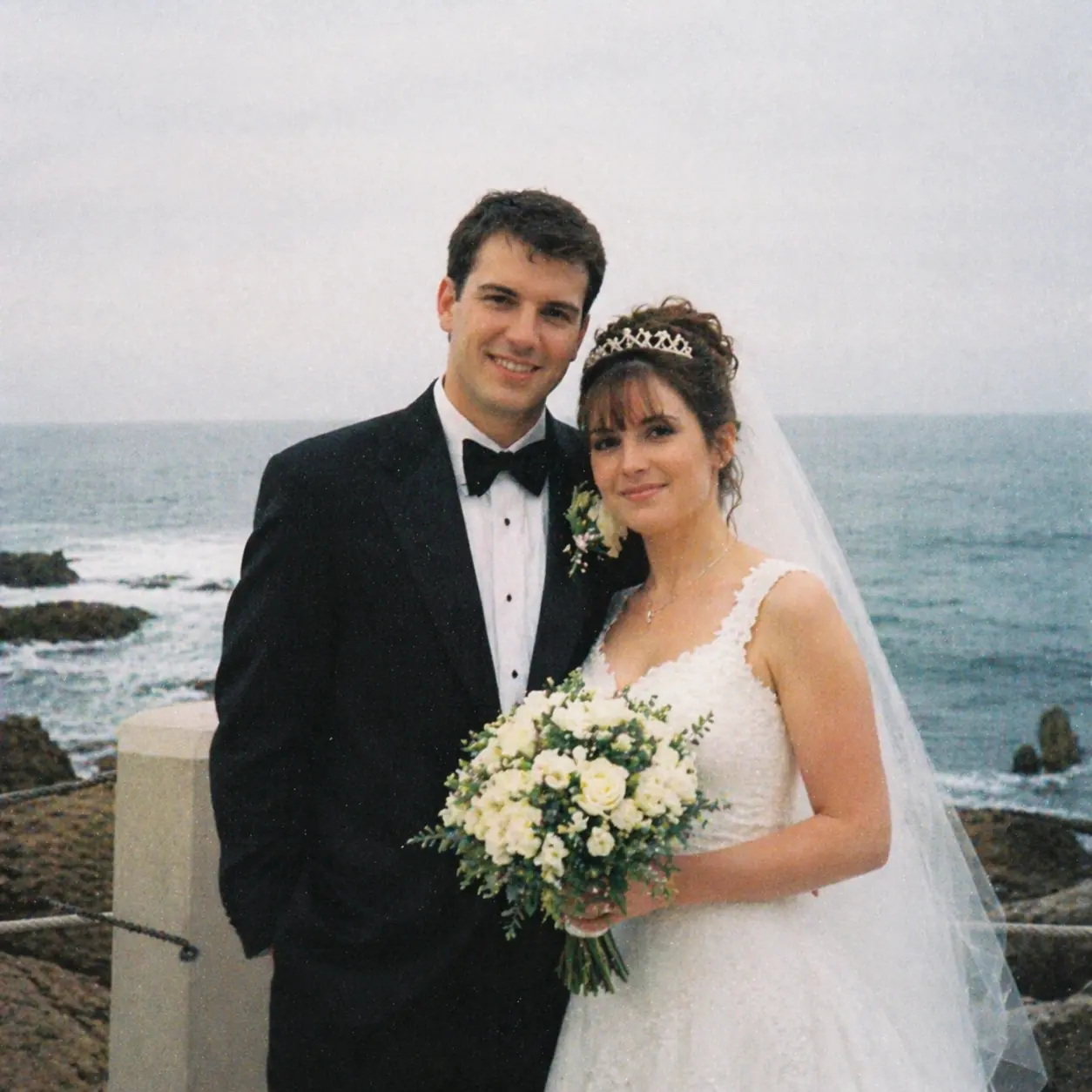
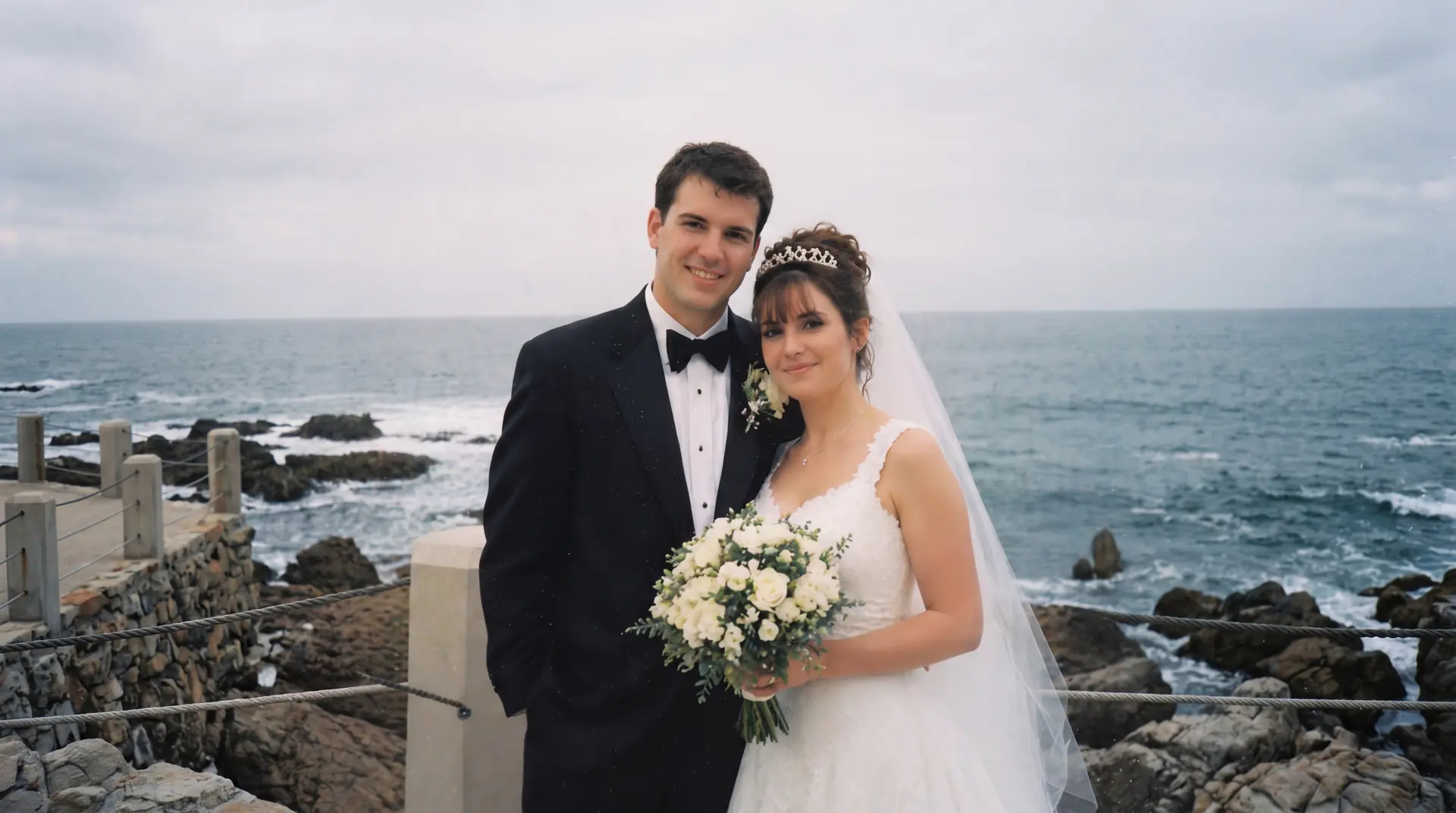
Before / After


Frame Expansion
Open more room around the subject and extend the frame inside the same studio workbench.
Extend uploaded image borders with a clean AI studio workflow for portraits, background edges, and wider composition.
Extend portrait backgrounds
Extend narrow social crops
Create more room for print layouts
01
Extends uploaded image edges with a focused AI workflow instead of stuffing the upload view with explanation.
02
Keeps studio controls consistent with the rest of the tool family.
03
Useful for social crops, print expansion, and reframing narrow originals.
Case studies
Image extender examples that open more space around the subject naturally.
Portrait background extension
Tight portrait crop that needed more breathing room around the shoulders and background
Extended the photo background so the subject felt less cramped and easier to reframe.
Wide composition rebuild
Landscape image with clipped edges and not enough horizontal space for design use
Expanded image borders to create more balanced composition room for layouts and banners.
Product canvas expansion
Product photo that needed more negative space around the object for print placement
Opened more space around the subject without forcing a visibly pasted-on background.
Image extender
When it makes sense to expand image online
An image extender workflow works best when the original composition feels too tight or clipped. Whether you want to extend photo background space around a portrait or create more room for print and design, the expanded edges should feel like part of the same scene rather than pasted filler.
Extend photo background
How to get cleaner edge extension around the subject
If you need to expand image online, start with a clean source that shows enough of the subject and surrounding context. That gives the image extender more visual cues to continue the background naturally and helps the studio extend the frame with fewer awkward seams.
Restore photo FAQ
Questions people ask before they extend an image.
Read these before you expand image borders so the new canvas matches the original scene more cleanly.
When is image extender useful?
Use it when the subject is too tight in frame or when you need more surrounding space for design, print, or crop options.
Why does it use the same studio?
The shared studio keeps upload, tool selection, and processing in one repeatable layout across all image tools.
Related tools
Explore adjacent image workflows without changing the original upload.
Repair cracks, fading, stains, and fragile portrait detail inside one focused photo restoration workspace.
Bring monochrome images back with believable skin tones, fabric color, and scene balance.
Enlarge low-resolution photos while keeping edges, faces, and surface texture more stable.
Recover edge definition and facial clarity from soft or mildly blurry photos.
Recover shadow detail and rebalance muddy scans or dark captures inside one clean workbench.
Reduce visible pixel blocks and compression damage while keeping the upload flow direct.