Brighten Image
Brighten dark or underexposed images with a clean AI workflow focused on tonal recovery and readable detail.
Before / After
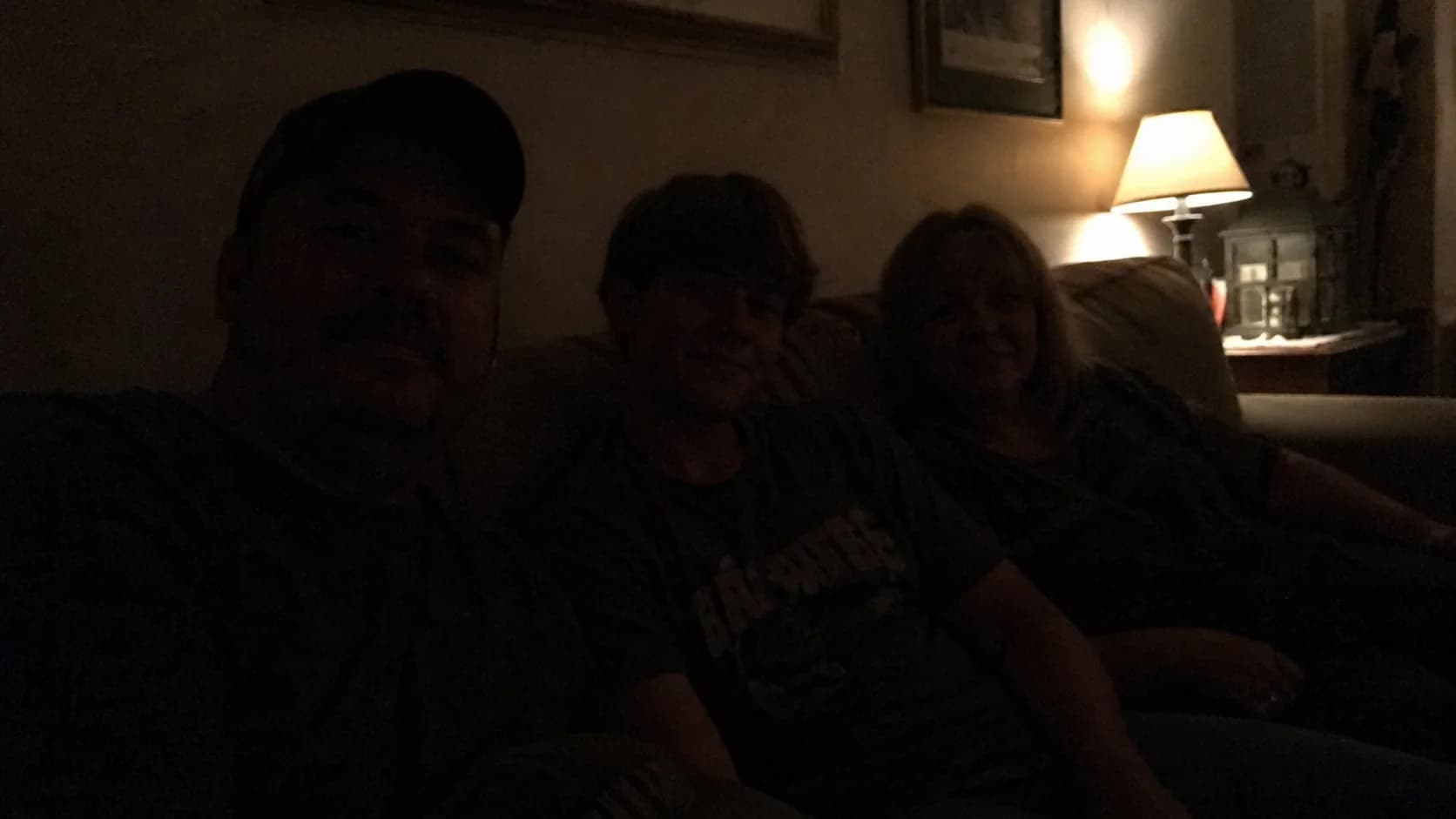
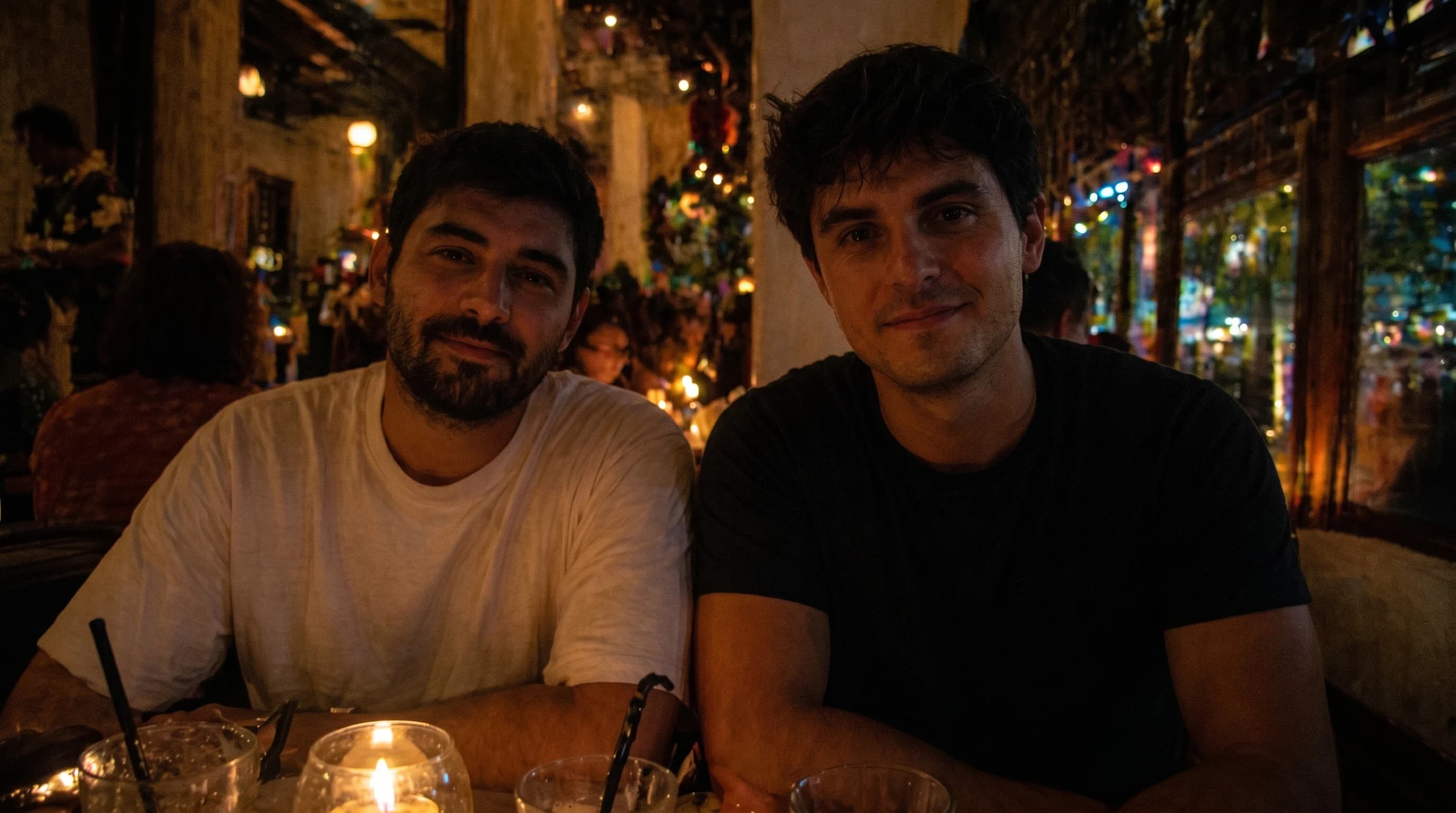
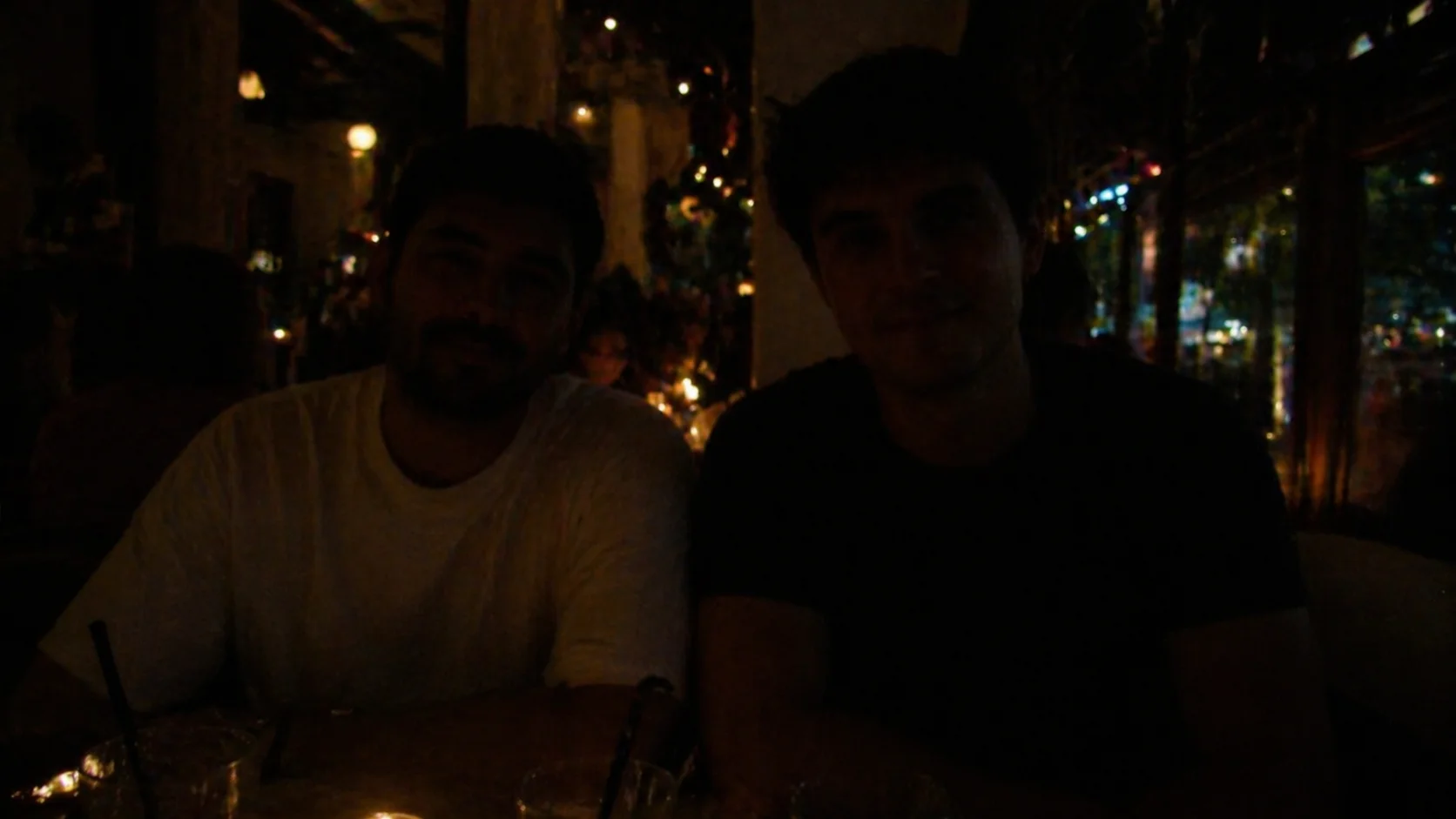
Correct dim indoor portraits


Exposure Lift
Recover shadow detail and rebalance muddy scans or dark captures inside one clean workbench.
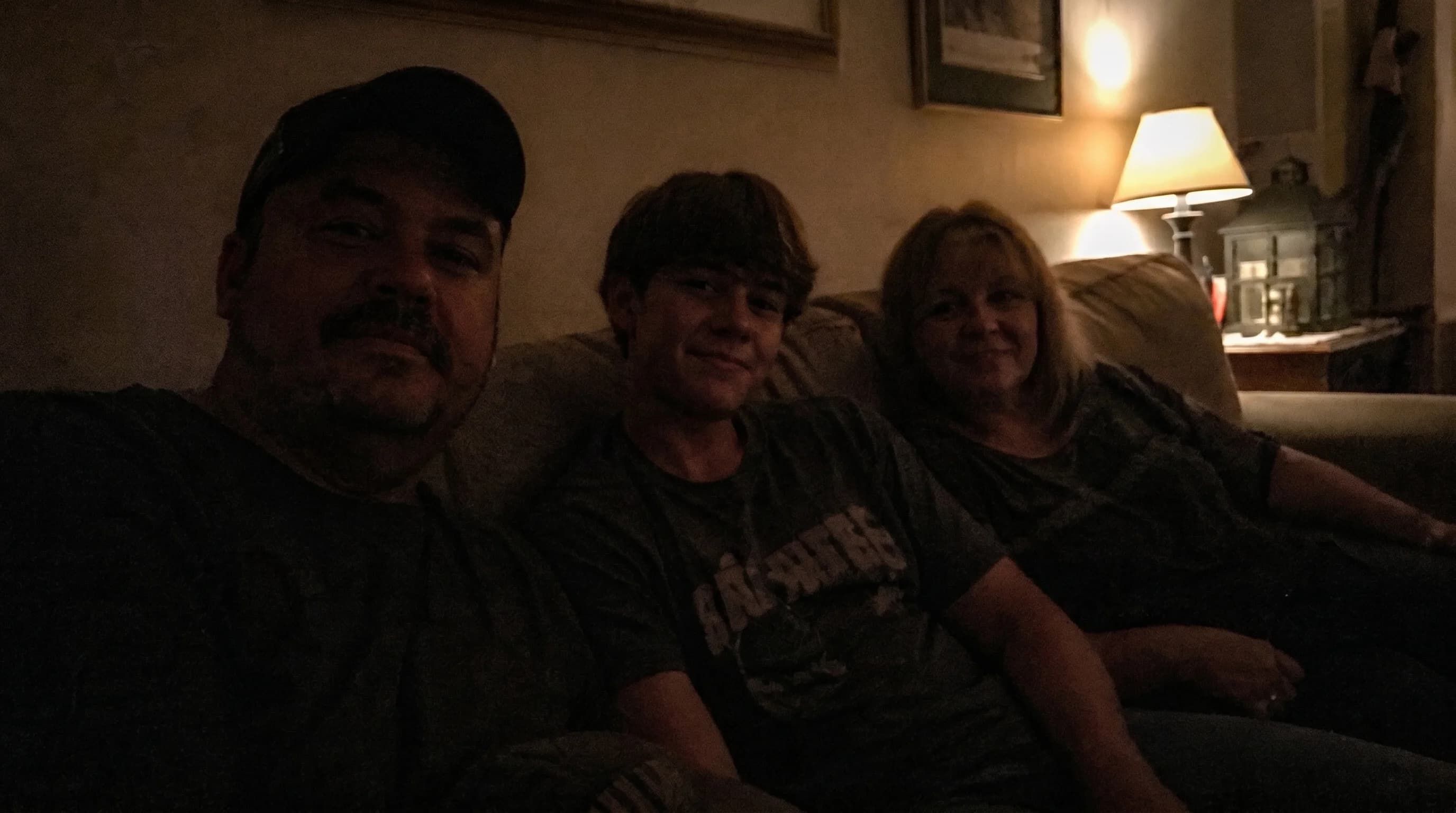
Lift dark family photos
Correct dim indoor portraits
Recover shadow detail in archival scans
Lifts dark photos while keeping highlights and skin more balanced.
Uses the same studio flow so the user can move fast between related correction tools.
Works for dim indoor portraits, underexposed scans, and muddy archival images.
Case studies
Brighten image examples that recover shadow detail without washing out the frame.
Indoor portrait exposure lift
Dim indoor family portrait with blocked shadow detail around faces and clothing
Recovered readable tonal separation without blowing out lamps, skin, or wall highlights.
Archive scan tonal recovery
Underexposed archive scan with muddy midtones and weak paper texture
Opened the darker regions so the image felt cleaner and more legible for review.
Printed photo brightness correction
Dark phone capture of a printed photo taken in uneven room light
Brightened the image while keeping the subject stable and avoiding washed-out contrast.
Brighten image
What a natural brighten dark photo workflow should fix
A brighten image workflow should do more than push global exposure up. To brighten dark photo files well, the process needs to recover shadow detail, protect highlights, and keep skin and paper texture from collapsing into a gray washed-out finish.
Fix underexposed image
How to recover dark photos without flattening the contrast
If you need to fix underexposed image files, start with the highest-quality scan or capture available. Cleaner source material gives the brighten image process more true tonal information to recover, which helps the studio lift dark regions without making the whole frame feel flat.
Restore photo FAQ
Questions people ask before they brighten a photo.
Review these before you lift exposure so you know when a dark photo needs brightening instead of full restoration.
When should I use brighten?
It is aimed at underexposed or muddy images where shadow detail is hard to read.
Can I switch tools quickly?
Yes. The shared studio lets you jump between exposure recovery, upscale, and restoration without changing flows.
Related tools
Explore adjacent image workflows without changing the original upload.
Repair cracks, fading, stains, and fragile portrait detail inside one focused photo restoration workspace.
Bring monochrome images back with believable skin tones, fabric color, and scene balance.
Enlarge low-resolution photos while keeping edges, faces, and surface texture more stable.
Recover edge definition and facial clarity from soft or mildly blurry photos.
Reduce visible pixel blocks and compression damage while keeping the upload flow direct.
Open more room around the subject and extend the frame inside the same studio workbench.